




You can download a full backup of your website using Softaculous inside your SiteWorx hosting panel. Please follow the steps below:
Step 1: Log in to Your Client Portal
Go to:
https://manage.cyberglobalnet.com/client/login
If you have forgotten your password, you can reset it here:
https://manage.cyberglobalnet.com/client/login/reset/
Step 2: Access Your Hosting Panel
-
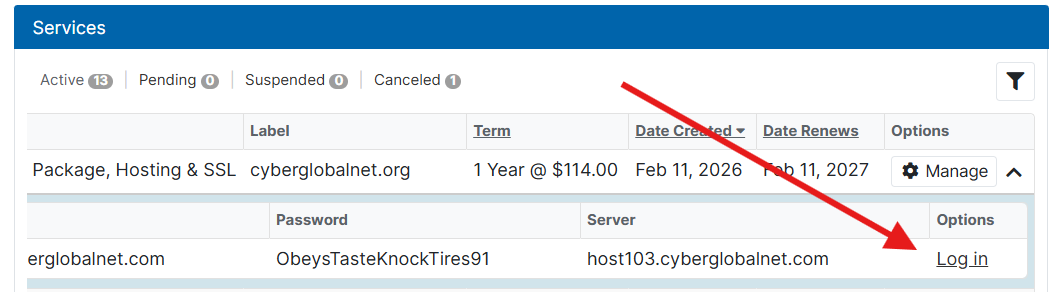
After logging in, locate your active hosting service.
-
Click on the service to expand the options.
-
Select Log In to automatically access your SiteWorx hosting panel.
A new tab will open with your hosting dashboard.
Step 3: Open Softaculous
-
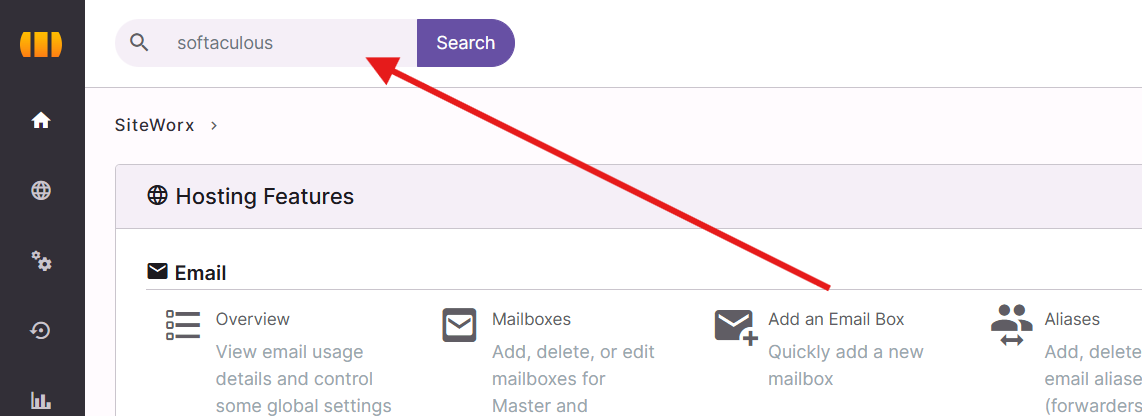
Inside SiteWorx, use the top search bar.
-
Type Softaculous and click on it when it appears.
Step 4: Navigate to Backups
-
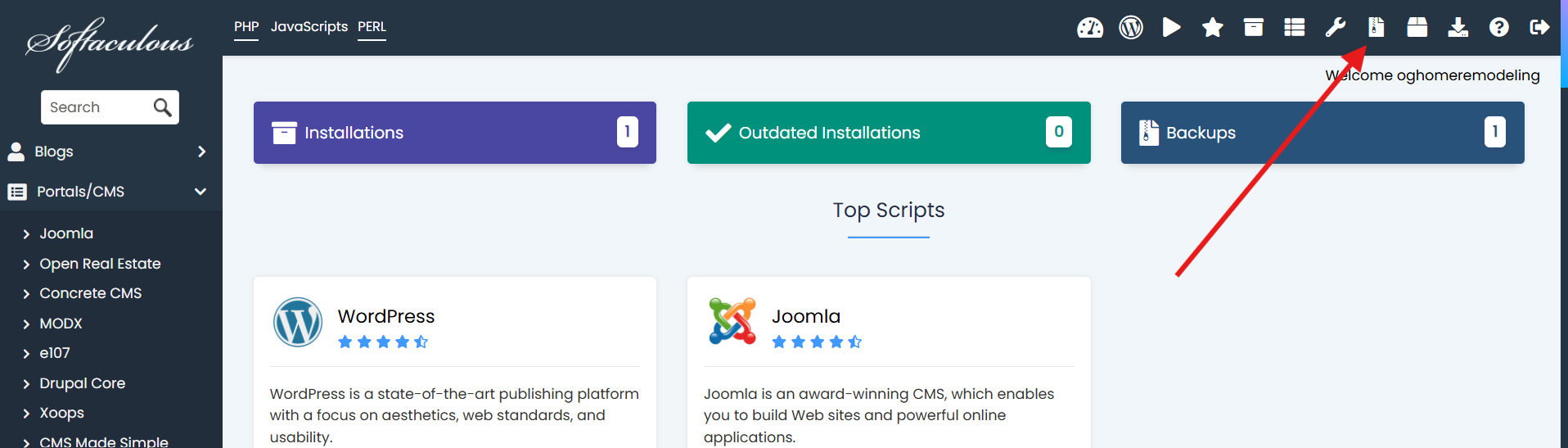
Once inside Softaculous, the page will reload.
-
Click on the Backups and Restore icon.
Step 5: Download Your Backup
-
Under the Backups and Restore section, locate the backup you would like to download.
-
Click the Download icon next to the desired backup file.
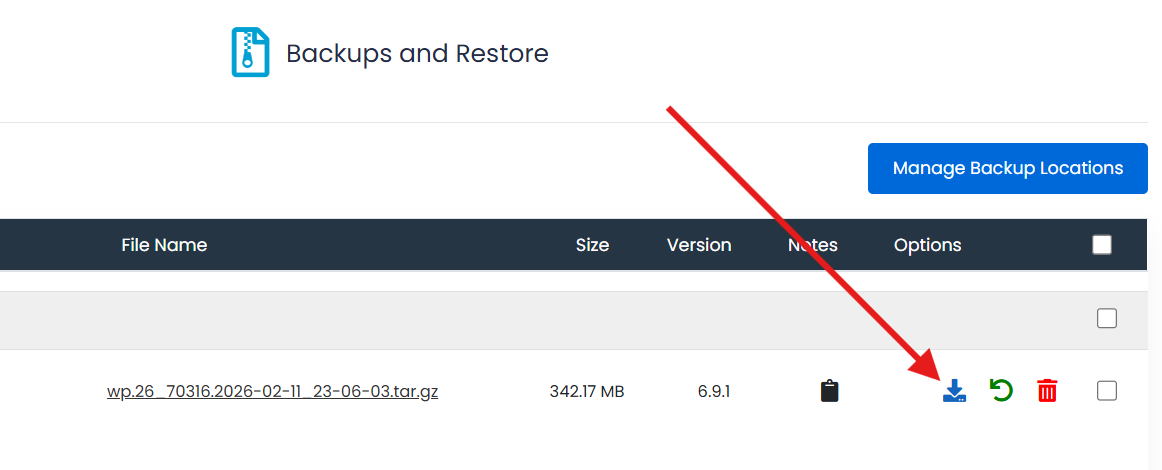
The download will begin automatically. Depending on the size of your website, this may take several minutes.
If you experience any issues downloading your backup, please contact our support team at

 Español